Last updated: August 2026 · Written by the SMARTIFLIX team, tested on a Fire TV Stick 4K Max, a second-generation Fire TV Stick Lite and a Fire TV Cube, on both congested 2.4 GHz Wi-Fi and a wired Ethernet adapter.
The 60-second answer
Nine times out of ten, IPTV buffering on a Firestick is not your provider. It is the stick running out of memory, the 2.4 GHz band being saturated, or the player’s buffer set too low for a live stream.
Do these three things first, in this order: force-stop every background app and reboot the stick; move the stick to 5 GHz or plug in an Ethernet adapter; raise the buffer in your player from the default to four or five seconds. That fixes most cases in under ten minutes. The remaining eight fixes below deal with the stubborn ones — and there is a two-minute test near the end that tells you definitively whether the fault is the stick or the line.
Why the Firestick buffers when other devices do not
The Fire TV Stick is a remarkable piece of value engineering and a genuinely under-powered computer. Even the 4K Max ships with 2 GB of RAM, and a meaningful slice of that is permanently occupied by Amazon’s own launcher, the recommendation engine and whatever else has been left running.
A live IPTV stream is unusually demanding on that hardware. Unlike Netflix, it cannot pre-load minutes of video ahead of you — it is live, so the buffer is only ever a few seconds deep. When RAM gets tight or the network hiccups for two seconds, that shallow buffer empties and you see the spinning wheel.
This is why the same line can be flawless on a phone and stutter on a Firestick. The stream is fine. The device is starved.
If your television is a Samsung and you are weighing up whether to use the stick at all, our guide to IPTV on a Samsung Smart TV compares both routes directly. Roku owners should read IPTV on Roku first, because that platform has a different problem entirely.
Fix 1 — Force-stop background apps and reboot
This is the single most effective fix and the one people skip because it sounds too simple.
- Settings → Applications → Manage Installed Applications.
- Go through the list. For anything that is not your IPTV player, choose Force stop, then Clear cache.
- Pay particular attention to Prime Video, the Amazon Silk browser, Downloader and any screensaver app. They restart themselves and they are memory-hungry.
- Settings → My Fire TV → Restart. A restart from the menu clears memory properly; pulling the power does not always.
Make it a habit, not a one-off. A Firestick that is never rebooted will start buffering again within a fortnight. Restarting it once a week takes thirty seconds and prevents most of the complaints we see.
Fix 2 — Get off 2.4 GHz
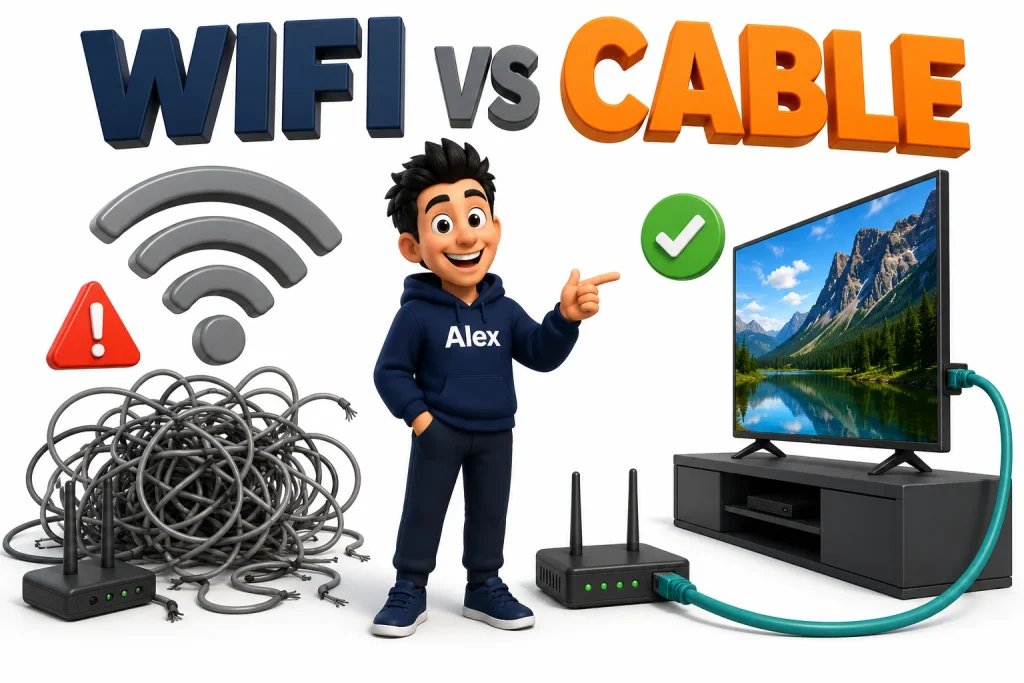
If your Firestick is on the 2.4 GHz band in a flat or a terraced house, it is competing with every neighbour’s router, doorbell, baby monitor and microwave. The band is 80 MHz wide in total and everybody is in it.
Go to Settings → Network. If your network name does not end in 5G or 5GHz, you are on the slow band. Most routers broadcast both — join the 5 GHz one. If they share a single name, log into the router and split them so you can pick.
Then check the signal strength the Firestick reports on that same screen. Anything below “Very good” will drop frames on a 4K stream. Distance matters more than you think: one plasterboard wall is fine, two brick walls is not.
Fix 3 — Plug it into Ethernet
An Amazon Ethernet adapter costs about £15 and eliminates more buffering than every software tweak in this article put together.
The adapter replaces the power cable: the stick plugs into HDMI as usual, and the adapter provides both power and a wired network port. If the router is far away, a pair of powerline adapters will bridge the gap and still beat Wi-Fi.
Wi-Fi’s problem is not raw speed, it is consistency. A 4K stream needs a steady 35 Mbps. Wi-Fi that averages 200 Mbps but dips to 5 Mbps for half a second every few minutes will buffer, while a rock-steady 40 Mbps wired connection will not.

Fix 4 — Raise the buffer in your player
Every serious IPTV player lets you decide how much video to hold in reserve. The defaults are tuned for fast connections and leave you almost no margin.
| Player | Where to change it | Set it to |
|---|---|---|
| TiviMate | Settings → Playback → Buffer size | 4–5 seconds |
| IPTV Smarters Pro | Settings → Player Selection → change to VLC | VLC handles it better |
| OTT Navigator | Settings → Player → Buffer length | 5 seconds |
| XCIPTV | Settings → Player → Buffer size | 4 seconds |
The trade-off is honest: a bigger buffer means channels take a second or two longer to open, and live sport runs marginally further behind. In exchange, a short network dip no longer empties the buffer. On a Firestick that trade is almost always worth making.
Do not set it to 10 seconds and walk away. A very large buffer on a 2 GB device causes a different problem: the stick runs out of memory and the app crashes outright. Four to five seconds is the sweet spot.
Fix 5 — Switch the decoder
Most players let you choose between hardware and software decoding. Hardware is faster and cooler; software is slower but more tolerant of streams with unusual encoding.
If a handful of channels stutter while the rest are perfect, those channels are probably encoded in a way your stick’s hardware decoder dislikes. Switch that player to software decoding, or to the VLC or exoplayer back-end, and try again. In TiviMate this is Settings → Playback → Decoder.
Leave it on hardware for everything else — software decoding on a Fire TV Stick Lite will drop frames on 4K.

Fix 6 — Free up storage
A Firestick with less than about 500 MB of free storage starts behaving strangely, and buffering is one of the symptoms. The system needs scratch space to write the stream buffer to.
Settings → My Fire TV → About → Storage. If you are low, uninstall apps you do not use, then clear the cache on the ones you keep. Screensaver images and the Amazon recommendation cache are common hidden consumers.
Fix 7 — Turn off Amazon’s background data
Out of the box a Firestick is constantly talking to Amazon: collecting usage data, downloading video previews for the home screen, and refreshing recommendations. All of it competes with your stream.
- Settings → Preferences → Featured Content → turn off Allow Video Autoplay and Allow Audio Autoplay.
- Settings → Preferences → Privacy Settings → turn off Device Usage Data, Collect App Usage Data and Interest-based Ads.
- Settings → Applications → turn off Collect App Usage Data.
None of these is dramatic on its own. Together they noticeably reduce the background chatter, and the video autoplay change alone stops a large download every time you land on the home screen.
Fix 8 — Test whether it is your ISP
Some internet providers shape or throttle sustained video traffic, particularly in the evening peak. If your stream is perfect at 2pm and unwatchable at 8pm, that is the classic signature.
The test is simple: run the same channel through a VPN. If a VPN makes it better, your ISP is shaping the traffic. If a VPN makes it worse or changes nothing, your ISP is innocent and you should look elsewhere.
A VPN is not a magic buffering fix. It adds a hop, so on an already-slow connection it makes things worse. Use it as a diagnostic first, and only leave it on if it genuinely helped.
Fix 9 — Stop the stick overheating
Firesticks throttle themselves when they get hot, and a stick pushed into a socket at the back of a wall-mounted TV, surrounded by other electronics, gets very hot indeed. Thermal throttling looks exactly like buffering.
Feel the stick after an hour of streaming. If it is uncomfortably warm, use the short HDMI extender that came in the box so it hangs in free air. It is the most-thrown-away accessory in the package and one of the most useful.
Fix 10 — Ask for a different server node
Once the stick is clean, wired, buffered and cool, the remaining possibility is the server you are connected to. Providers run multiple nodes, and yours may be overloaded or badly routed to your country.
Message your provider, tell them which channels stutter and at what times, and ask to be moved to a different node. With SMARTIFLIX that is a free change and takes a couple of minutes — see the support FAQ for how to ask. Any provider who refuses to do it is telling you something about the service.
Fix 11 — Lower the stream quality on purpose
If you are on a genuinely limited connection, the honest fix is to stop asking for 4K. Most providers carry the same channel in 4K, FHD and HD variants.
An FHD stream that never stutters beats a 4K stream that pauses every ninety seconds, and on a 43-inch screen at normal viewing distance you will struggle to tell them apart. Switch the category you watch from and the problem often disappears entirely.
The two-minute test: stick or line?
Before you spend another evening on settings, settle the question.
- Install IPTV Smarters or a similar player on your phone.
- Log in with the same username, password and portal URL.
- Turn Wi-Fi off so the phone uses mobile data.
- Play the exact channel that stutters on the Firestick, for two full minutes.
Phone is perfect: the line and the server are fine. The fault is the Firestick or your home network — work through fixes 1 to 9.
Phone stutters too: the Firestick is innocent. It is the provider’s server or that specific channel — go to fix 10.
This one test resolves more support conversations than every other piece of advice we give.
Which Firestick you own changes what is possible
Not every Fire TV device has the same headroom, and it is worth knowing where yours sits before you conclude the software is at fault.
| Device | RAM | Wi-Fi | Realistic ceiling |
|---|---|---|---|
| Fire TV Stick Lite | 1 GB | Wi-Fi 5 | HD comfortably, FHD if wired. Do not expect 4K. |
| Fire TV Stick (3rd gen) | 1 GB | Wi-Fi 5 | FHD all day. 4K only on a clean network. |
| Fire TV Stick 4K | 1.5 GB | Wi-Fi 5 | 4K works, but keep background apps closed. |
| Fire TV Stick 4K Max | 2 GB | Wi-Fi 6 | The one to buy. 4K HDR with room to spare. |
| Fire TV Cube | 2 GB | Wi-Fi 6E | Best of the range, and it has a built-in Ethernet port. |
If you are on a Lite or an older 1 GB stick and you have already worked through the fixes above, you are not doing anything wrong — you have reached the limit of the hardware. Either drop to FHD streams permanently or move up to a 4K Max, which is the cheapest meaningful upgrade in the whole chain.
Five things people get wrong about Firestick buffering
- Blaming the provider immediately. If one channel stutters and 22,000 do not, the server is not the problem.
- Installing a “booster” or “cleaner” app. These do nothing on Fire OS except consume the memory you are trying to free.
- Testing on Wi-Fi and drawing conclusions. Wi-Fi is variable by the minute. Until you have tested on Ethernet you have not tested anything.
- Judging a channel in the first ten seconds. Every stream buffers briefly as it fills. Give it thirty seconds before deciding.
- Running three devices on a one-connection line. Most plans allow one or two simultaneous streams. A third device does not queue politely — it fights the others.
Frequently asked questions
Why does my IPTV buffer only in the evening?
Evening buffering is almost always congestion — either your ISP shaping video traffic during peak hours, or your provider’s server carrying its heaviest load. Test with a VPN to tell them apart: if the VPN helps, it is your ISP; if it does not, ask your provider to move you to a different node.
How much internet speed do I need for IPTV on a Firestick?
15 Mbps for HD, 25 Mbps for Full HD and 35 Mbps or more for 4K. Stability matters more than the headline figure — a steady 40 Mbps wired connection outperforms an unstable 200 Mbps Wi-Fi one every time.
Does a VPN stop IPTV buffering?
Only if your internet provider is throttling video. In that case a VPN hides the traffic and the buffering stops. If throttling is not the cause, a VPN adds latency and usually makes buffering slightly worse.
Will a newer Firestick fix buffering?
Sometimes. The 4K Max has noticeably more headroom than the Lite or the older HD models, and it supports Wi-Fi 6. But a new stick on saturated 2.4 GHz Wi-Fi will still buffer — fix the network first, then consider the hardware.
Why do only some channels buffer?
That points at the source rather than your setup. Individual channels sit on individual servers, and one can be overloaded while the rest are fine. It can also be a codec your stick’s hardware decoder struggles with — try software decoding on that channel before contacting support.
Does clearing the cache on my IPTV app help?
Yes, and it is worth doing monthly. Players accumulate EPG data, channel logos and thumbnails that slow menus and eat storage. Clear the cache, not the data — clearing data deletes your login.
Is it normal for IPTV to buffer when changing channels?
A one- to three-second pause when opening a channel is completely normal; the player is filling its buffer. Buffering that continues after the picture has settled, or that recurs during playback, is the problem this guide addresses.
Tired of fighting your line?
SMARTIFLIX runs load-balanced anti-freeze servers with capacity reserved for big fixtures, and a free node switch any time a channel misbehaves. Plans from $14, with a 7-day money-back guarantee.