Last updated: August 2026 · Written by the SMARTIFLIX team, tested on a Roku Express 4K+, a Roku Streaming Stick 4K and a TCL Roku TV, on the current Roku OS with both an Xtream Codes login and an M3U playlist.
The 60-second answer
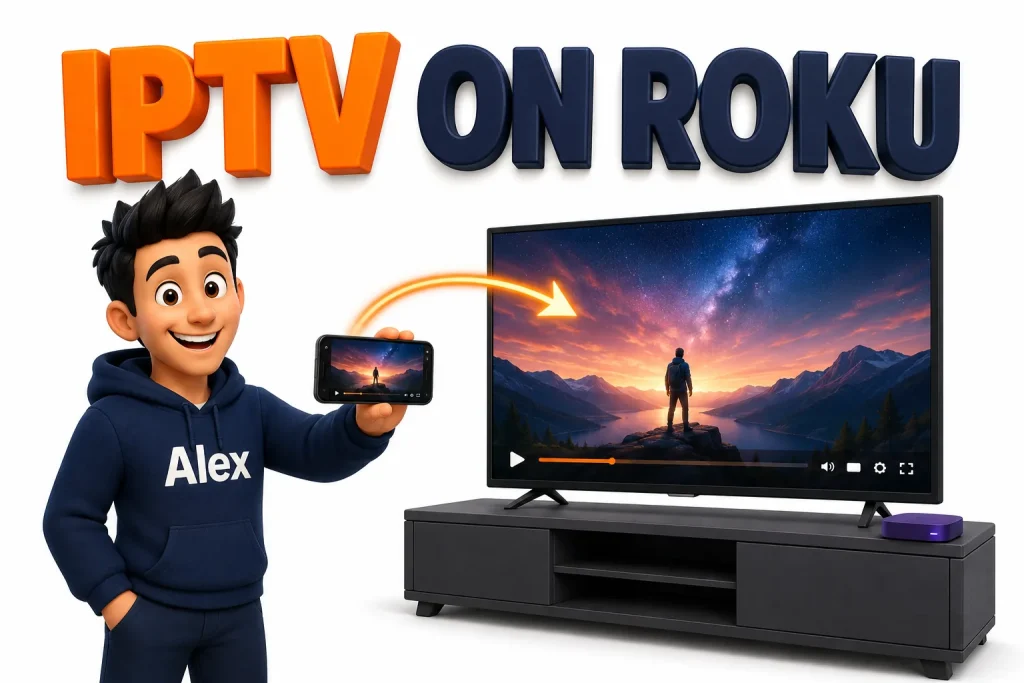
Roku does not allow IPTV players in its channel store, and it cannot sideload apps. There is no Roku equivalent of TiviMate and there is not going to be one. So the three routes that actually work are: screen-mirror from a phone or PC, use a private “developer” channel loaded with your playlist, or plug a cheap Android stick into a spare HDMI port and stop fighting Roku.
If you want a real answer rather than a technically-true one: buy the stick. A £35 Fire TV Stick or Android box gives you a proper player, a proper EPG and a remote that works, and it turns your Roku TV into a very good screen. The other two routes are worth knowing, and we cover them properly below, but neither is a comfortable daily setup.
Why Roku is the hardest device to put IPTV on
Samsung owners face a milder version of the same lock-in, which we cover in IPTV on a Samsung Smart TV. Roku’s whole business is built on curation. Every channel in the Roku Channel Store is reviewed and approved by Roku, and the platform is deliberately locked so that nothing else can get on.
There is no APK, no “unknown sources”, no Downloader, no file manager. Roku channels are written in Roku’s own language, BrightScript, and they have to be published through Roku’s own pipeline. Even if a developer wrote an excellent IPTV player, Roku’s content policies mean it would not survive review.
Add to that the hardware. A Roku Express has a fraction of the memory of a Fire TV Stick 4K Max, which matters when you are decoding a live stream and holding a channel list of twenty thousand entries in memory at the same time.
Roku TV vs Roku stick — same problem. A TCL, Hisense or Sharp television with Roku built in runs exactly the same locked operating system as the plug-in players. Being built into the TV does not unlock anything.
Route 1 — Screen mirroring from a phone or PC
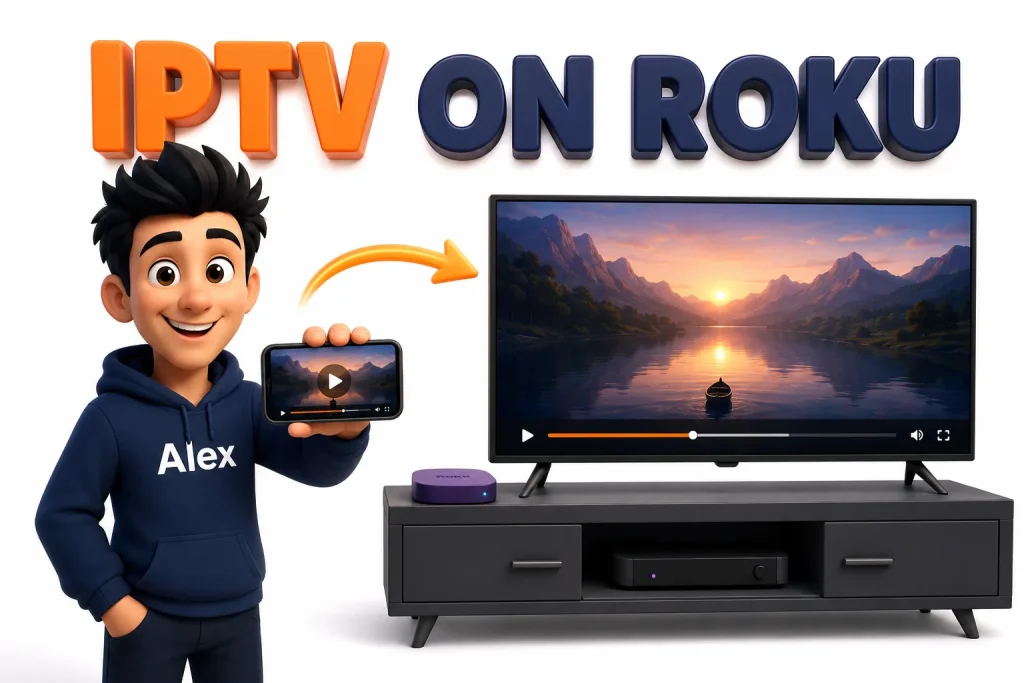
This is the route most people land on, because it needs nothing you do not already own.
Setting it up, in order
- On the Roku: Settings → System → Screen mirroring → set Screen mirroring mode to Prompt or Always allow.
- Install a proper IPTV player on the source device — IPTV Smarters Pro or TiviMate on Android, or any player you like on Windows.
- Log in there with your Xtream Codes username, password and portal URL.
- Android: pull down the quick settings and choose Smart View, Cast or Screen Cast, then pick the Roku.
Windows: press Win + K and select the Roku. - Start the channel on the phone. It appears on the television.
What it actually costs you
Mirroring is a live re-encode. The phone decodes the stream, re-encodes it as a screen recording and sends it over Wi-Fi, and every one of those steps costs you something:
- Lag. Two to five seconds behind. Fine for a film, painful when the neighbours cheer a goal before you see it.
- Quality loss. A 4K source arrives as roughly 1080p, sometimes lower if the Wi-Fi is busy.
- Battery. A phone will get hot and drain in about two hours.
- Interruptions. A call, a notification banner or the screen locking all land on your television.
iPhone owners: newer Roku devices support AirPlay 2, which is noticeably better than Android mirroring, but the same fundamental trade-offs apply.
Route 2 — A private channel with your playlist
Roku allows “non-certified” channels to be added to an account by code. These are legitimate — Roku’s own developer programme creates them — and a handful are generic M3U players.
How adding one works
- Sign in to your Roku account on a computer at
my.roku.com. - Find Add channel with a code in the account menu.
- Enter the channel’s code and confirm.
- On the Roku: Settings → System → System update → Check now. This forces the new channel to download rather than waiting up to a day.
- Open the channel and paste your M3U URL. Almost none of these support an Xtream Codes login.
Be careful where the code comes from. A private channel can be removed by Roku at any time, will not auto-update, and is asking you to hand it your playlist URL — which contains your username and password in plain text. Only use one you found through a source you actually trust, and never a code posted anonymously alongside a promise of free channels.
What you give up
Even when a private channel works, it is a thin experience. Expect a plain scrolling list rather than a grid, little or no EPG, no catch-up, no recording, no favourites that sync, and menus that get slow past a few thousand channels. It is a way to watch, not a way to enjoy watching.
Route 3 — Plug in an Android stick and ignore Roku
This is what we recommend, and what almost every customer who came to us with a Roku ended up doing.
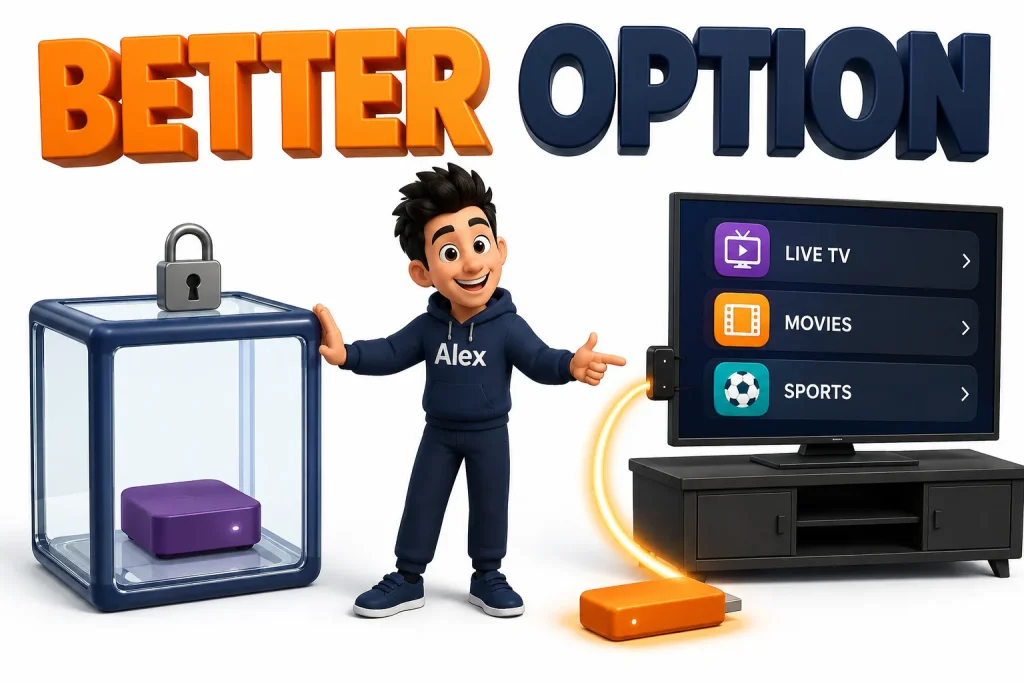
Buy a Fire TV Stick 4K Max, a Chromecast with Google TV, or an Android TV box. Plug it into a spare HDMI port on the same television. Switch input. That is the entire process.
You now have TiviMate, IPTV Smarters Pro, OTT Navigator and every other serious player (our Firestick buffering guide covers tuning them), with a real EPG grid, recording, catch-up, per-user profiles and hardware built for the job. The Roku still works for Netflix and everything else — you have added an option, not removed one.
The three routes, side by side
| Mirroring | Private channel | Android stick | |
|---|---|---|---|
| Cost | £0 | £0 | £35 – £60 |
| Picture quality | ~1080p, re-encoded | Source quality | Full 4K HDR |
| Lag | 2 – 5 seconds | None | None |
| EPG guide | On the phone | Minimal or none | Full 7-day grid |
| Xtream login | Yes | M3U only | Yes |
| Ties up your phone | Yes | No | No |
| Recording | No | No | Yes |
| Good enough daily? | No | Just about | Yes |
Getting the best picture out of a Roku TV
If you take the stick route, the Roku TV becomes a display and a few settings decide how good it looks.
- Set the HDMI input to the 4K-capable mode. On most Roku TVs: Settings → TV inputs → select the input → HDMI mode → HDMI 2.0 or Auto. Left on the compatibility setting, the port is capped and HDR never engages.
- Picture mode: Movie. Vivid oversaturates and oversharpens, which makes compression artefacts in a broadcast stream far more obvious.
- Turn off Action Smoothing for live sport. Frame interpolation on a fast pan smears the ball.
- Rename the input. Roku will offer to hide unused inputs — make sure it does not hide the one your stick is in after a firmware update.
Making mirroring as good as it can get
If mirroring is going to be your setup, a handful of changes take it from unwatchable to tolerable.
- Put both devices on 5 GHz. Mirroring sends a full video stream over Wi-Fi twice — once to the phone, once to the Roku. On 2.4 GHz in a busy building it has no chance.
- Wire the Roku if you can. A Roku Ultra or a Roku TV with an Ethernet port removes half the wireless hops in the chain.
- Lock the phone’s screen rotation and turn on Do Not Disturb before you start, so a banner or a rotation does not interrupt the picture.
- Pick the FHD version of a channel, not the 4K one. The mirror is going to downscale anyway, so you are only asking the phone to work harder for a picture you will never see.
- Keep the phone plugged in. Mirroring for a full match will flatten most handsets.
Done properly, mirroring is genuinely fine for a film on a weeknight. It remains a poor choice for live sport, and no amount of tuning changes that — the delay is structural.
Does a newer or more expensive Roku help?
It is a fair question, and the honest answer is: barely. The lock is a policy, not a hardware limitation, so paying more does not unlock anything. What you do get is a smoother experience on the routes that already work.
| Device | Mirroring | AirPlay | Any change to IPTV? |
|---|---|---|---|
| Roku Express | Basic, drops frames | No | None. Weakest option. |
| Roku Express 4K+ | Reliable | Yes | Still no player apps. |
| Streaming Stick 4K | Smooth | Yes | Still no player apps. |
| Roku Ultra | Best of the range | Yes | Ethernet port helps stability, nothing else. |
| Roku TV (TCL etc.) | Varies by model | Usually | Same locked OS. |
The one genuinely useful upgrade is the Roku Ultra’s Ethernet port, and only because a wired connection makes mirroring less erratic. If you are already spending that much, the money is better put toward an Android stick.
Protect your playlist URL
This matters more on Roku than anywhere else, because the private-channel route asks you to paste your M3U URL into software nobody has vetted.
Your playlist URL is not a harmless link. It typically looks like http://server.com:8080/get.php?username=YOURNAME&password=YOURPASSWORD&type=m3u — your credentials, in the open, inside the address. Anyone who obtains it can use your line, which will push you over your connection limit and get you locked out of your own subscription.
- Never post it in a forum, a Reddit thread or a support chat screenshot. Blur it the way you would blur a bank card.
- Prefer Xtream Codes logins wherever the player supports them. The credentials still travel, but they are not sitting in a URL you might paste somewhere by accident.
- If you think it has leaked, ask your provider to reset the line. With SMARTIFLIX that is free and takes a couple of minutes.
Five things people get wrong about IPTV on Roku
- Searching the Roku store for TiviMate or IPTV Smarters. They are not there, they have never been there, and any “Roku version” you find advertised elsewhere is not genuine.
- Believing a YouTube video about sideloading on Roku. Roku OS has no sideloading mechanism at all. Videos claiming otherwise are describing a different platform or selling something.
- Handing a playlist URL to an unknown private channel. That URL is your username and password. Treat it like a password, because it is one.
- Judging IPTV quality by a mirrored stream. Mirroring degrades the picture before it reaches the TV. If you are evaluating a provider, test on a phone or a proper player, not through a mirror.
- Assuming a Roku TV is more capable than a Roku stick. Identical locked OS, usually slower hardware.
When it is the line, not the Roku
Mirroring makes it easy to blame the wrong thing. Before you conclude your provider is at fault, run the same two-minute test we give every customer.
Play the problem channel directly on your phone, over mobile data rather than home Wi-Fi, using the same login. If the phone is clean, your line is fine and the fault is in the mirroring chain or your home network. If the phone stutters too, ask your provider to move you to another server node — the setup guides and the FAQ cover the rest.
So should you use a Roku for IPTV at all?
As the screen, absolutely — a Roku TV is a perfectly good television. As the player, no.
Roku is the one major platform that has decided, deliberately and permanently, not to let you install the software you want. That is a reasonable business choice on their part and a bad situation for you. Every workaround is a compromise, and the cheapest way out of the compromise is a £35 stick.
If you already own a Roku TV, keep it. Add a stick, switch input when you want IPTV, and you have the best of both.
Frequently asked questions
Is there an IPTV app for Roku?
There is no mainstream IPTV player in the Roku Channel Store, and Roku’s policies mean apps like TiviMate and IPTV Smarters will not appear there. A few generic M3U players exist as private, non-certified channels added by code, but they are basic and can be removed by Roku at any time.
Can I install IPTV Smarters on a Roku?
No. IPTV Smarters is built for Android, iOS, Windows and Tizen. Roku runs its own operating system and cannot install applications from outside its store. To use IPTV Smarters on a Roku television, connect an Android streaming device to a spare HDMI port.
How do I add a private channel to Roku?
Sign in to your Roku account at my.roku.com on a computer, choose “Add channel with a code”, enter the code and confirm. Then on the device go to Settings → System → System update → Check now to pull it down immediately.
Does screen mirroring IPTV to Roku work in 4K?
Not in practice. Mirroring re-encodes the picture on the sending device and generally arrives at around 1080p, lower if the Wi-Fi is congested. For genuine 4K you need a device that plays the stream natively.
Why does mirroring lag on my Roku?
Because the phone is decoding, re-encoding and transmitting the video in real time. Two to five seconds of delay is inherent to the method, not a fault. Moving both devices to 5 GHz Wi-Fi reduces it a little but never removes it.
Which streaming stick should I buy for a Roku TV?
A Fire TV Stick 4K Max is the usual answer: cheap, widely available, and it runs every serious IPTV player. A Chromecast with Google TV or an Android TV box works just as well if you prefer the interface.
Will using IPTV get my Roku account banned?
Mirroring your own phone to your own device is ordinary use of a feature Roku ships. Adding non-certified channels is also supported by Roku’s own developer programme, though Roku can remove any specific channel it chooses. Neither is a reason to expect account trouble.
One line, every device in the house
A SMARTIFLIX subscription works on the stick, the phone you mirror from, and everything else you own — 23,000+ channels and 160,000+ titles. Plans from $14, with a 7-day money-back guarantee.